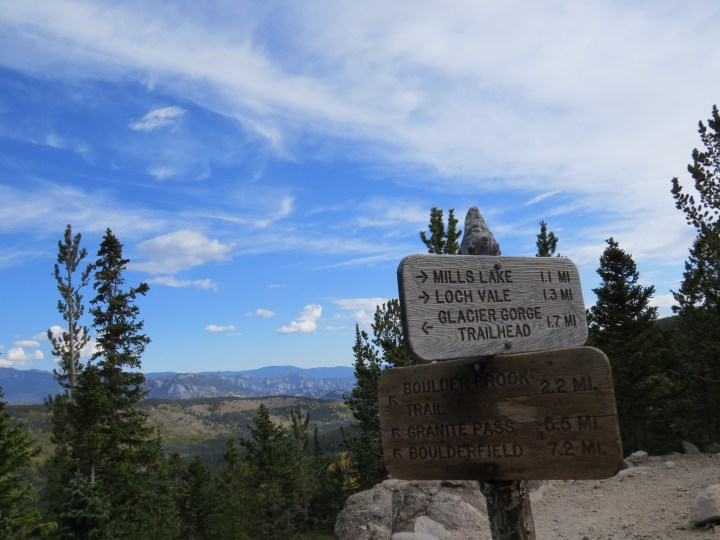
I want to climb a mountain.
Certainly, to do so implies reaching the summit, trekking to the very top and gazing full circle, all 360 glorious degrees, upon the landscape both beyond and below. After hiking in Colorado last fall, someone suggested I try to ‘bag’ a 14er – a mountain peak that’s 14,000 feet or higher above sea level. And so, my husband and I now have a trip planned this summer to hike the beautiful trails and mountains there again and, of particular interest, to attempt to reach the crest of Gray’s Peak, the tenth highest mountain in Colorado. Whether or not our attempt at mastering such an ascent culminates in a stopping point where ‘down’ is the only option, I’ll still be content to just try, where the beauty and magnificence of this incredible wilderness state will be reward enough for our efforts. Still though, the pull of that moment, imagined in my mind’s eye, spurs me forward. I want it. I want it badly. I want to climb this mountain.
I’m told many factors will come into play. Only a select few will be under my control. Others, such as the weather, are conditions that will be calling the shots that day, one that will begin before the sun comes up. We’ve been advised to leave early, preferably around five AM, so that we can reach the top and begin our descent before noon to avoid getting caught, totally exposed at the top of the mountain, above the treeline, in summer storms that can quickly develop in the early afternoon hours.
My elliptical workouts during these cold winter months, with spring hikes planned in Iowa state parks, along with healthy eating, eager enthusiasm, photographic inspiration and technical skills are my contributions to the effort and I do what I can. I have no illusions. I turn 58 next week and while not terribly out of shape, nor am I a lean, mean fighting machine. Living here in the Midwest, where bluffs and hills provide weak to moderate vertical challenges, I realize that being a ‘flatlander’ will put me at odds when it comes to the elevation and thin air of Colorado terrain. A few days of acclimation will be required before we try the climb. Storms, wind and rain might derail us. There’s a lot to consider and some planning will be required if our venture to the top is be a successful one.
So be it. It’s my mountain and I want to see what she – and I – are made of.




















 A Sawyer's Daughter
Chit Chat